

Your earnings, your bookings, your guest reviews and every statement, in one place and ready whenever you are. That is the Sunny Orange Stays Owner Portal, and this is the full tour of what is inside.
Press play for the four minute video, or read on for a section by section look. Either way, you will know your way around by the end!
| Section | What you will find |
|---|---|
| Overview | What your rentals have earned for you this year, month by month, and what is coming up next |
| Calendar | Every guest stay and owner stay across your rentals |
| Bookings | Upcoming reservations, what past stays earned, and a quick way to book your own stay |
| Reviews | What guests have written about your rentals, gathered from every site |
| Reports | Statements, profit and loss, damage claims, inspections and maintenance |
| Tools | Your personal link, QR code and ready-made images for sharing your rental |
Want a closer look? Select any screenshot on this page to open it full size.
Sign In With Your Email, No Password
Go to sunnyorangestays.com/owner-portal and type the email address we have on file for you. We send a sign-in link to that address. Select the link and you are in. There is no password to create, and nothing to remember.
If a link does not arrive, we most likely have a different email address on file for you. Let your manager know and we will update it.
Overview: Your Year at a Glance
The Overview opens with the number most owners look for first: what your rentals have earned for you this year, after our commission and any expenses. Behind it, a line of waves shows your net income month by month, and the sun sits over your best month. Select any month to see its figure.
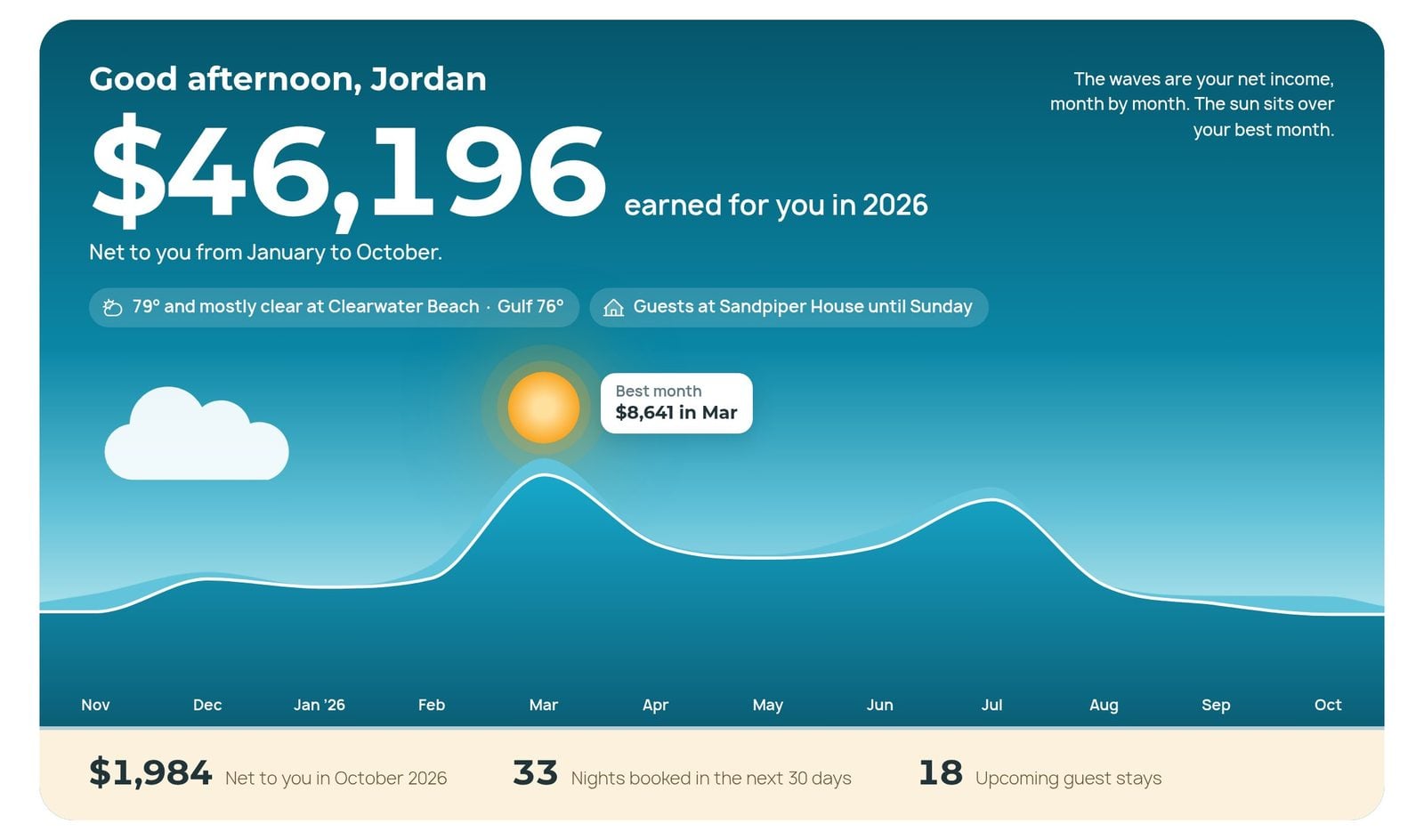
Just below the waves are last month’s net income, the nights booked over the next thirty days, and the number of guest stays on the way. Keep scrolling for your latest statement and the guests arriving next, then a card for each of your rentals.
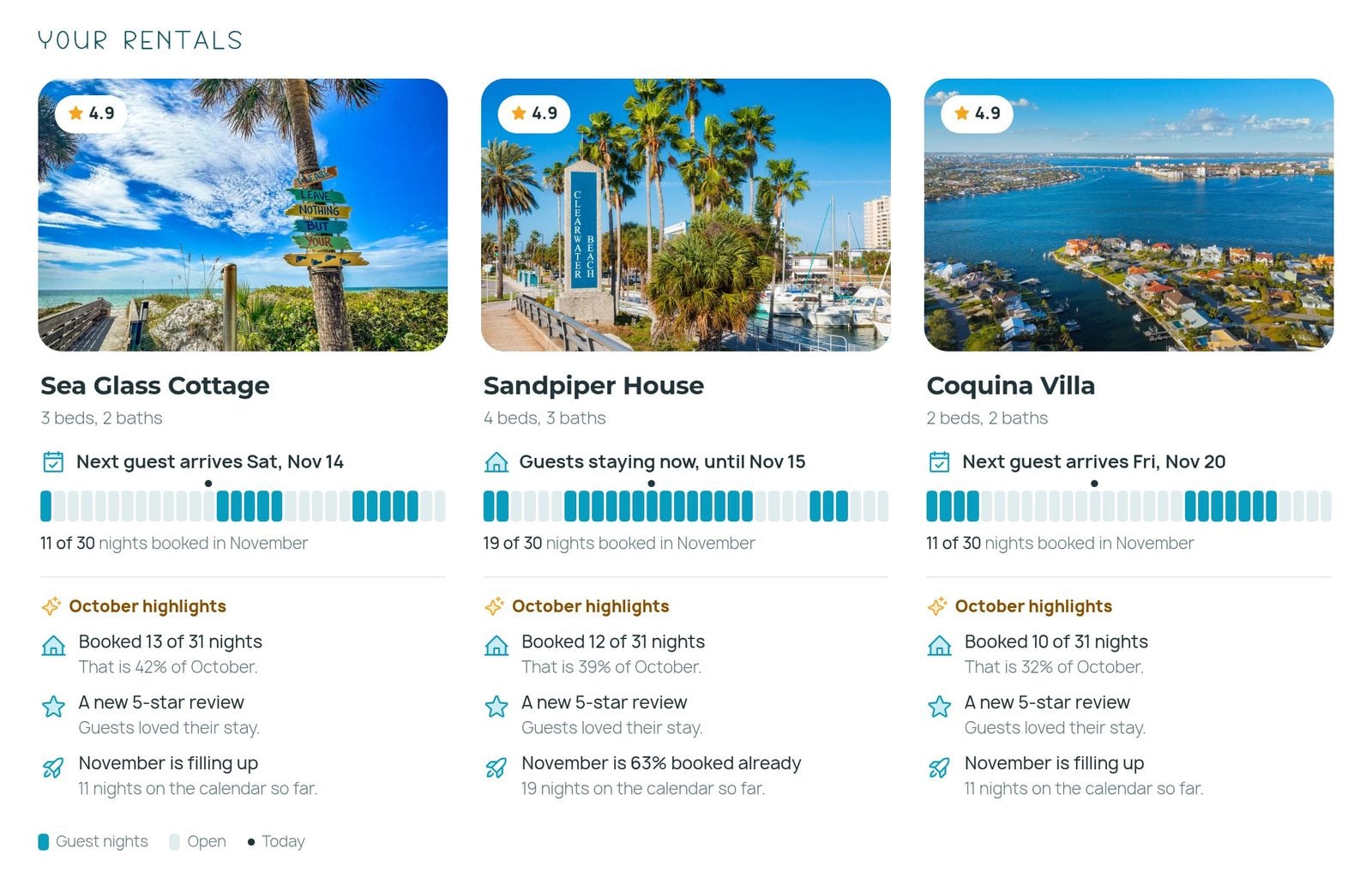
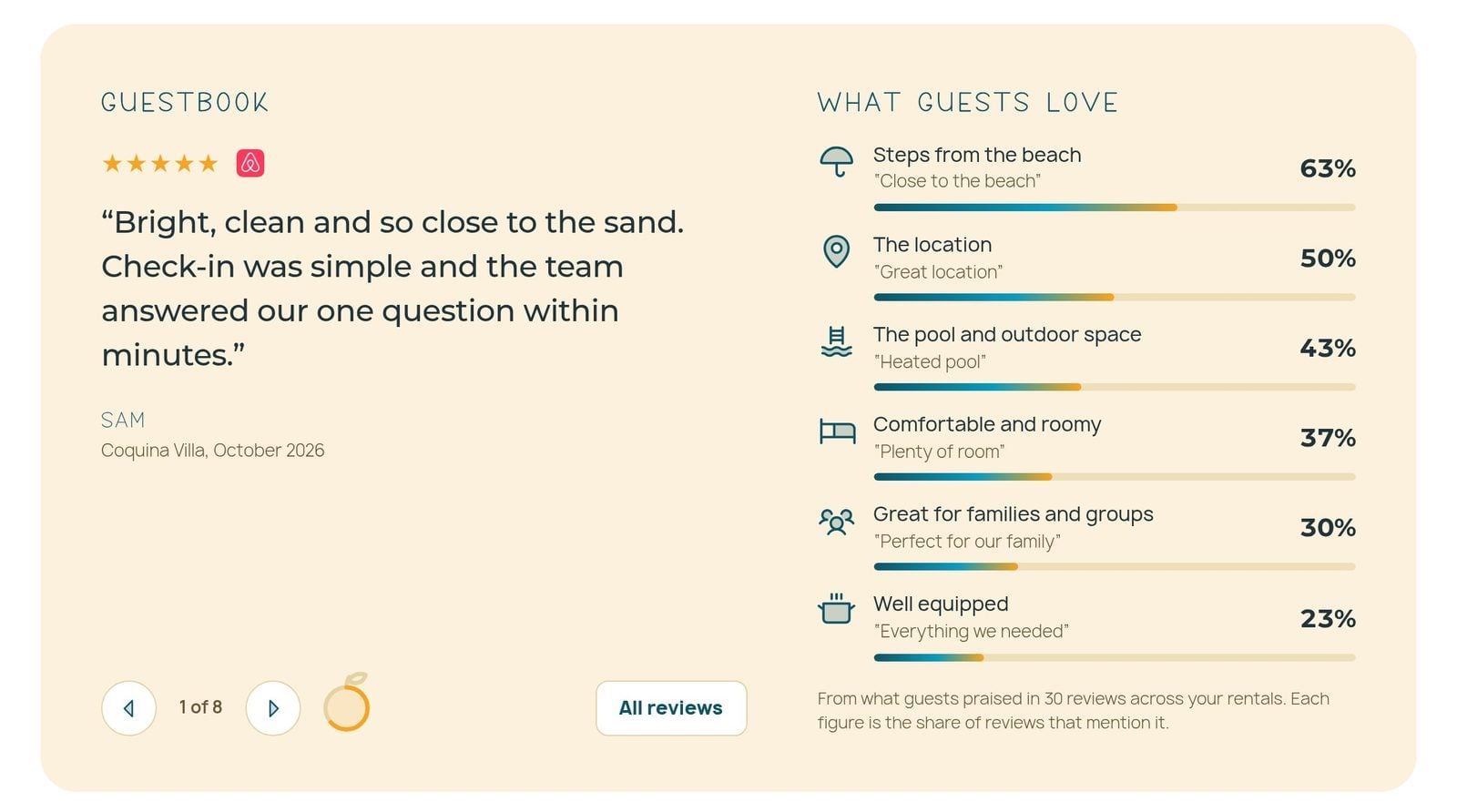
What guests are saying
The Guestbook turns through recent guest comments, and What guests love shows the things guests mention most in their reviews, from the location to how well equipped the rental is.
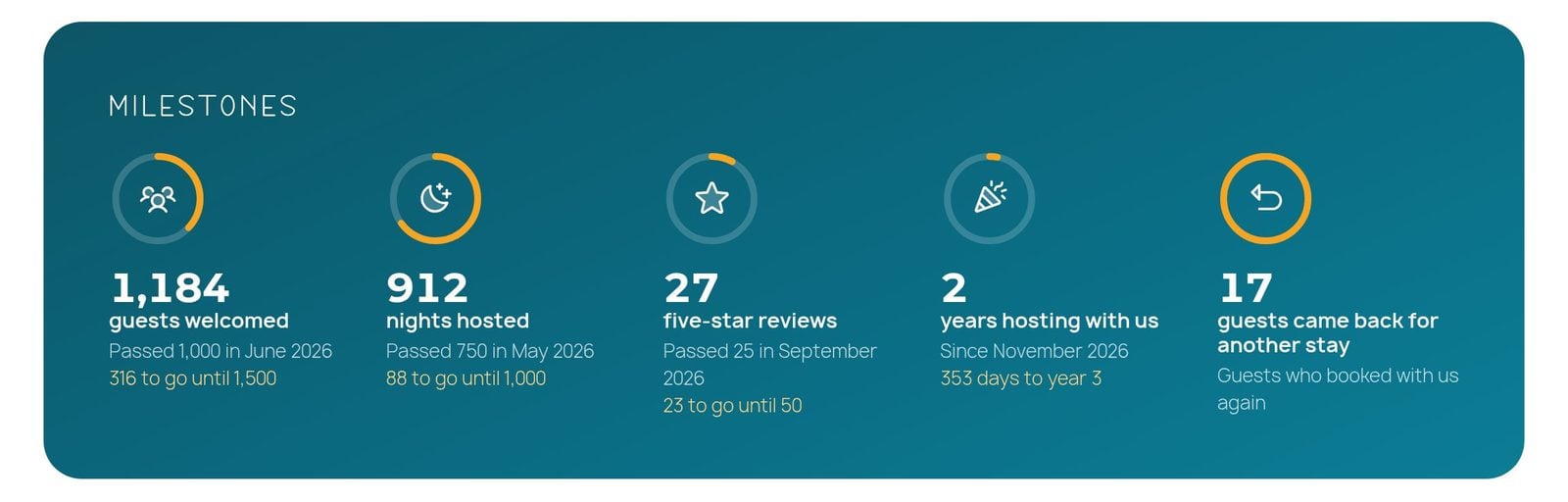
Milestones worth celebrating
Guests welcomed, nights hosted, five-star reviews, years with us and guests who came back for another stay. Each milestone shows how far you have come and how close the next one is.
Where your guests come from
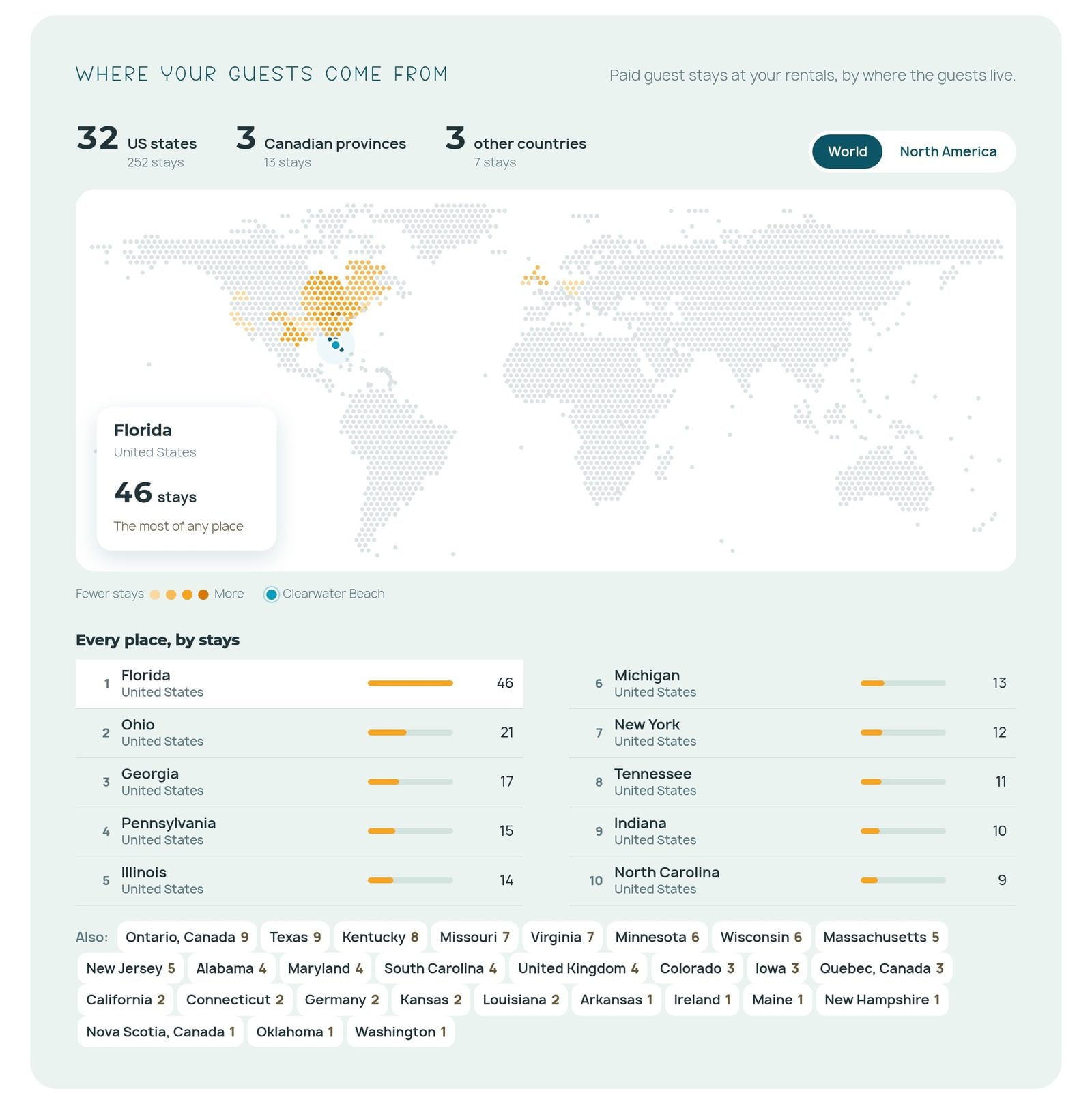
A map shows where your guests travel from, across the United States, Canada and the rest of the world, with every place ranked by number of stays.
What is bringing guests to town
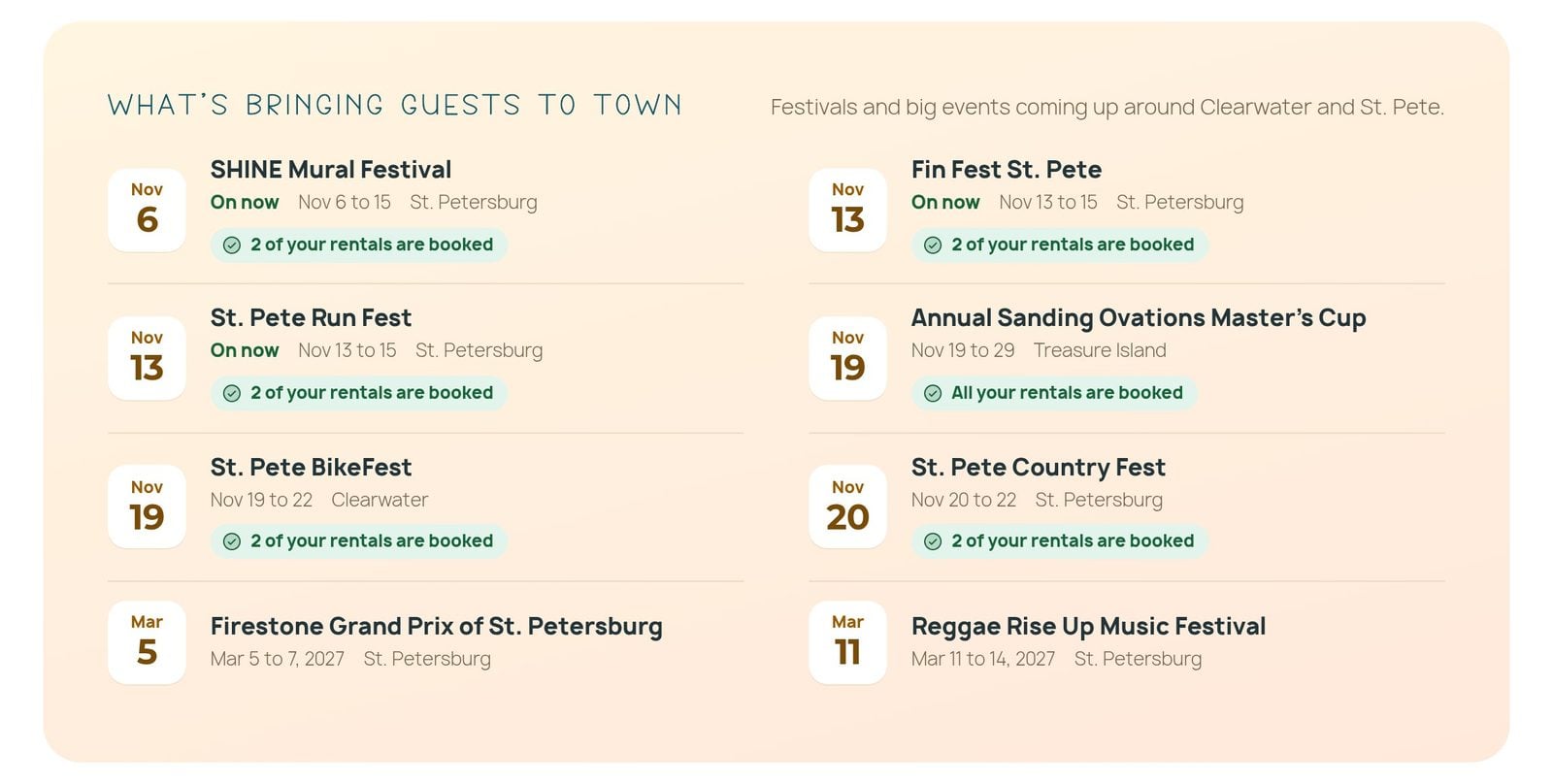
Festivals, races and big events around Clearwater and St. Pete fill calendars. This section lists what is coming up, and notes when your rentals are already booked for those dates.
Calendar: Every Stay on One Grid
The Calendar shows every booking across your rentals. Blue bars are guest stays and orange bars are your own. Select a bar to see the details, and use the arrows to move between months.
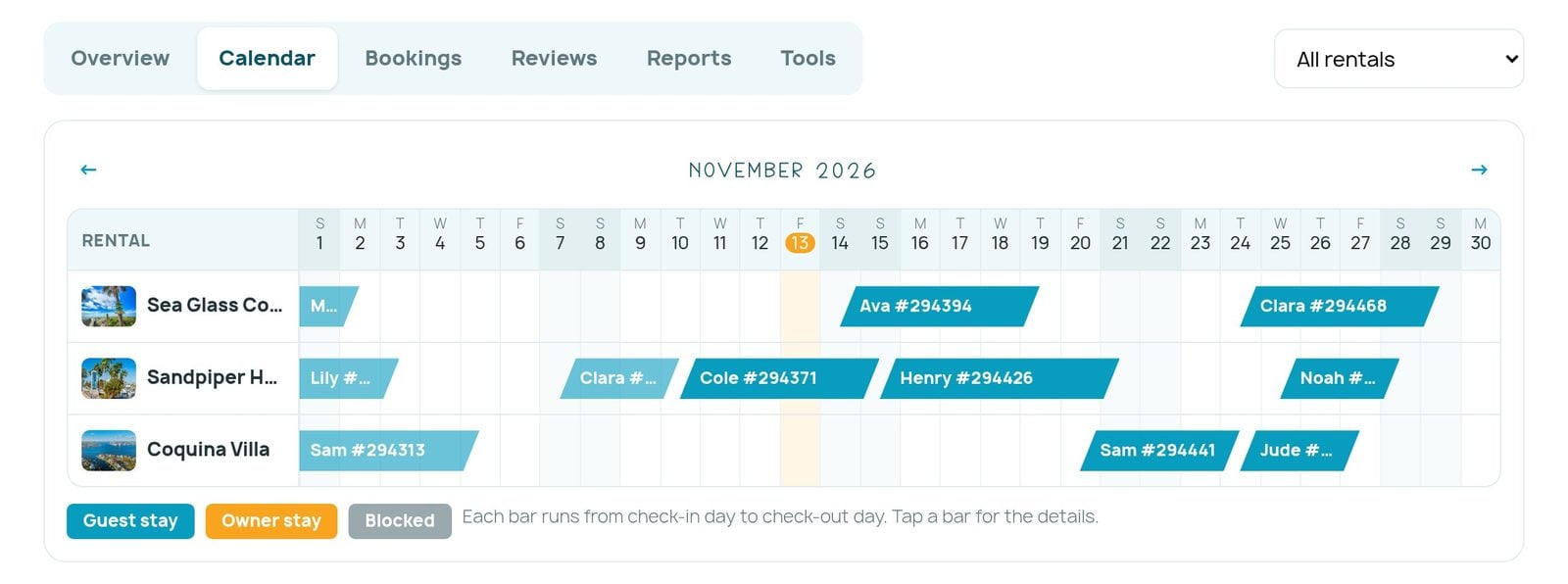
Own more than one rental? That menu at the top right lets you see them all together or one at a time, and it works the same way in every section.
Bookings: Who Is Coming, and What Each Stay Earned
Bookings lists every upcoming reservation, with the rental, the dates and the number of nights. Switch to Past 12 months to see what each stay earned for you.
Book your own stay
Planning to use your rental yourself? Select Book a stay, choose your rental and your dates, and tell us whether the stay is for you or for friends and family. Your dates are held right away and a confirmation is emailed to you.
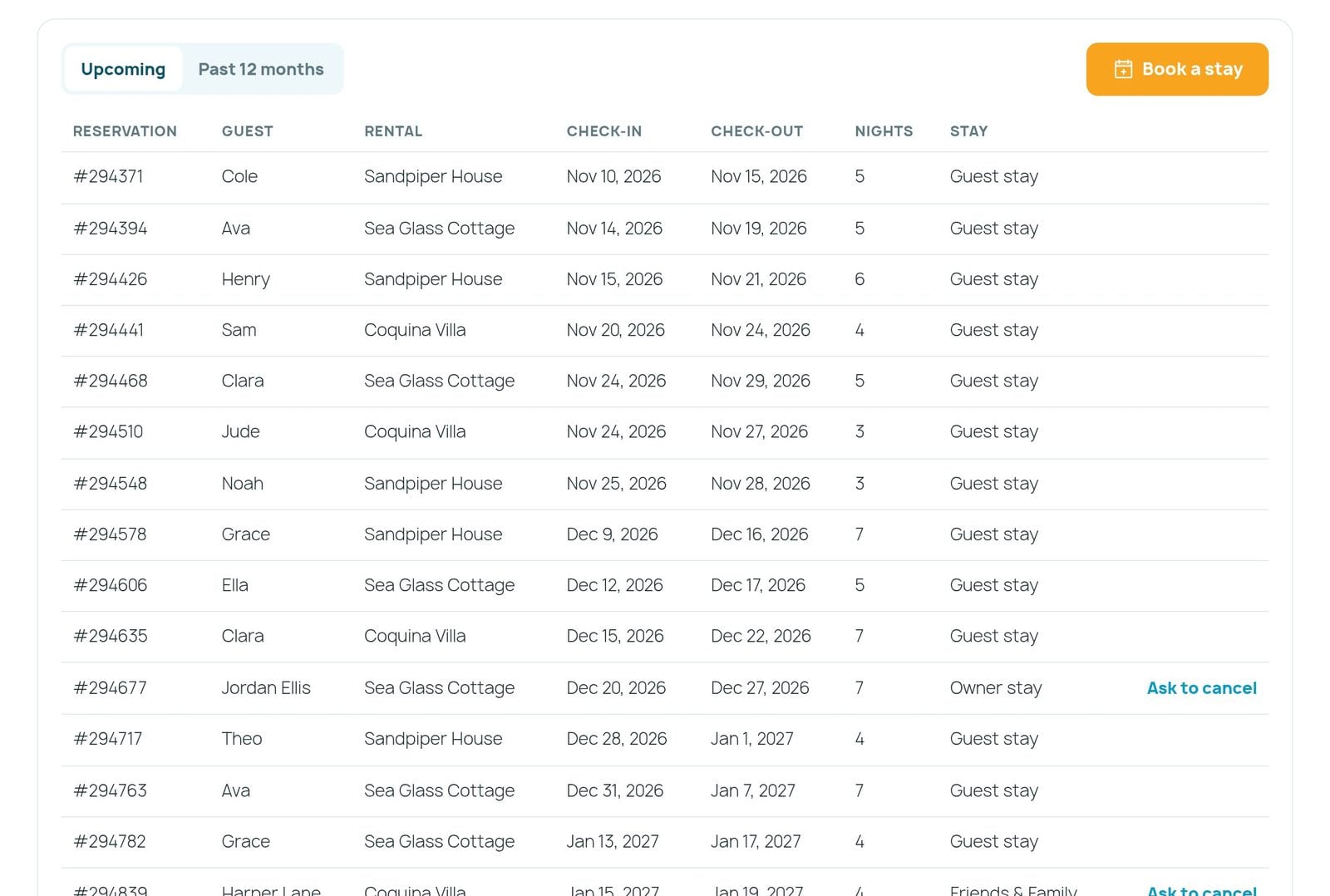
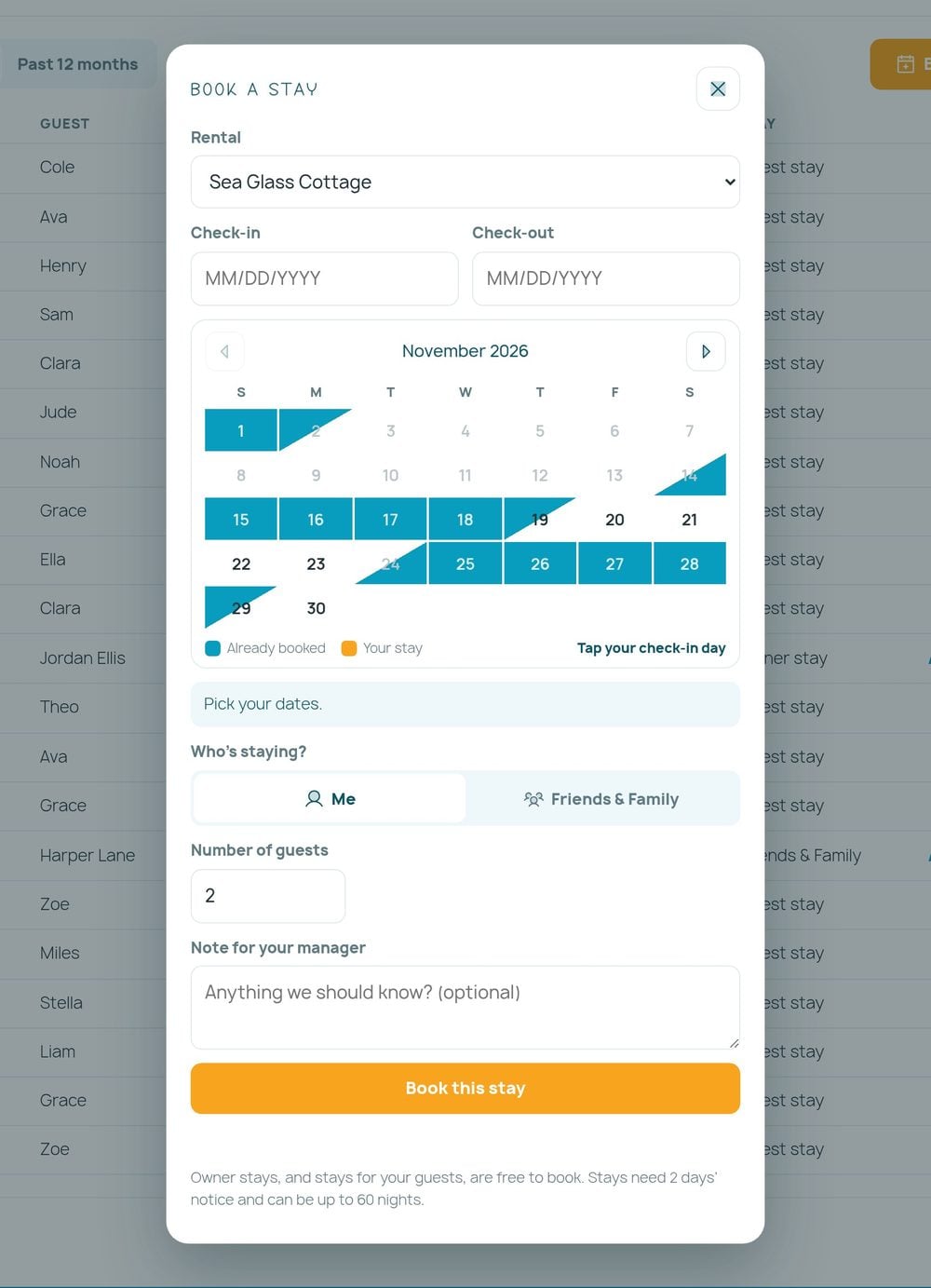
Owner stays, and stays for your guests, are free to book. They need two days’ notice and can be up to 60 nights. If your plans change, select Ask to cancel beside the stay in the same list and we will take care of it.
Reviews: Everything Guests Have Written
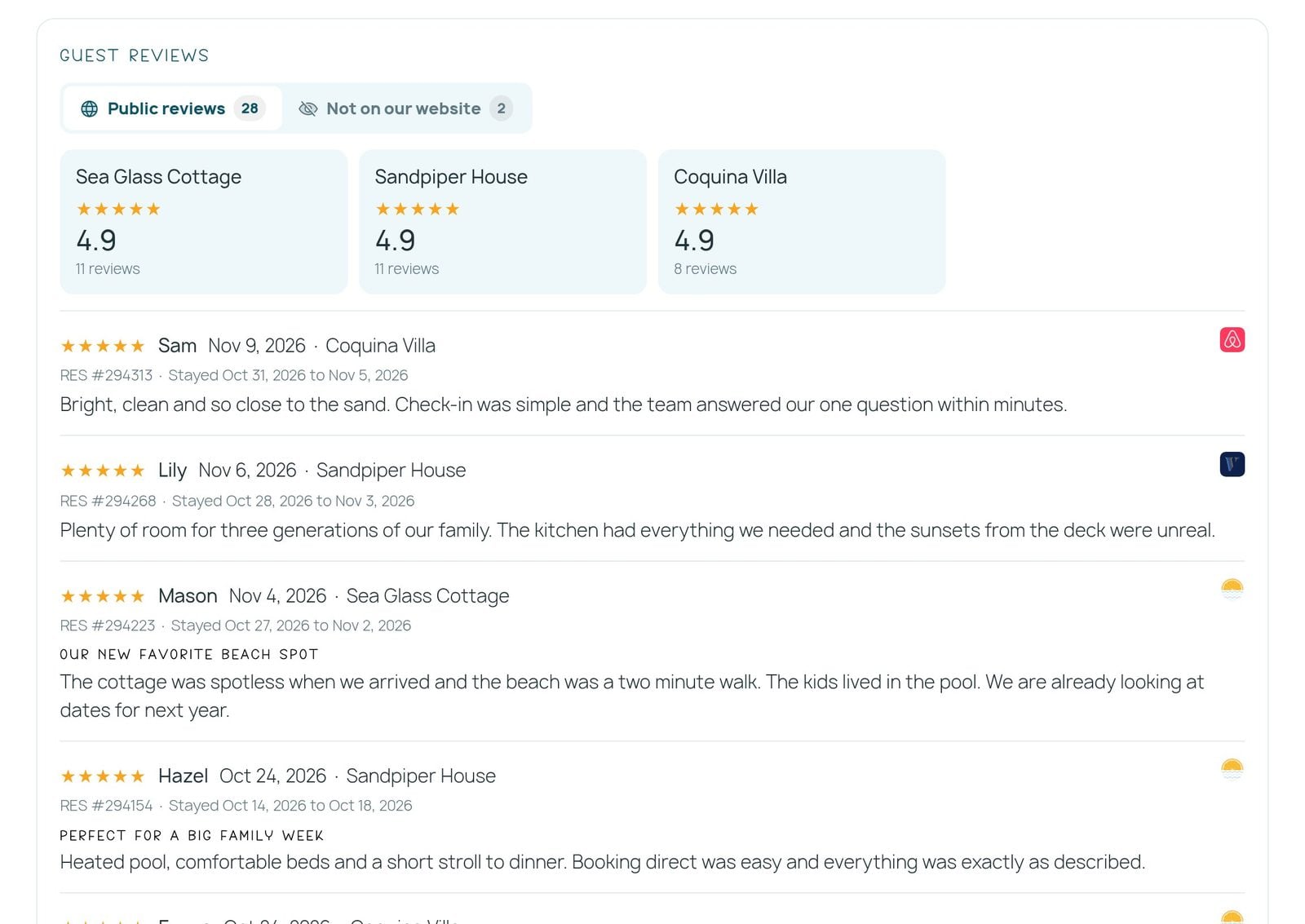
Reviews brings together what guests have written about your rentals, from every site where they left a review. Each rental’s rating sits at the top, with the newest reviews first.
Reports: Where Your Paperwork Lives
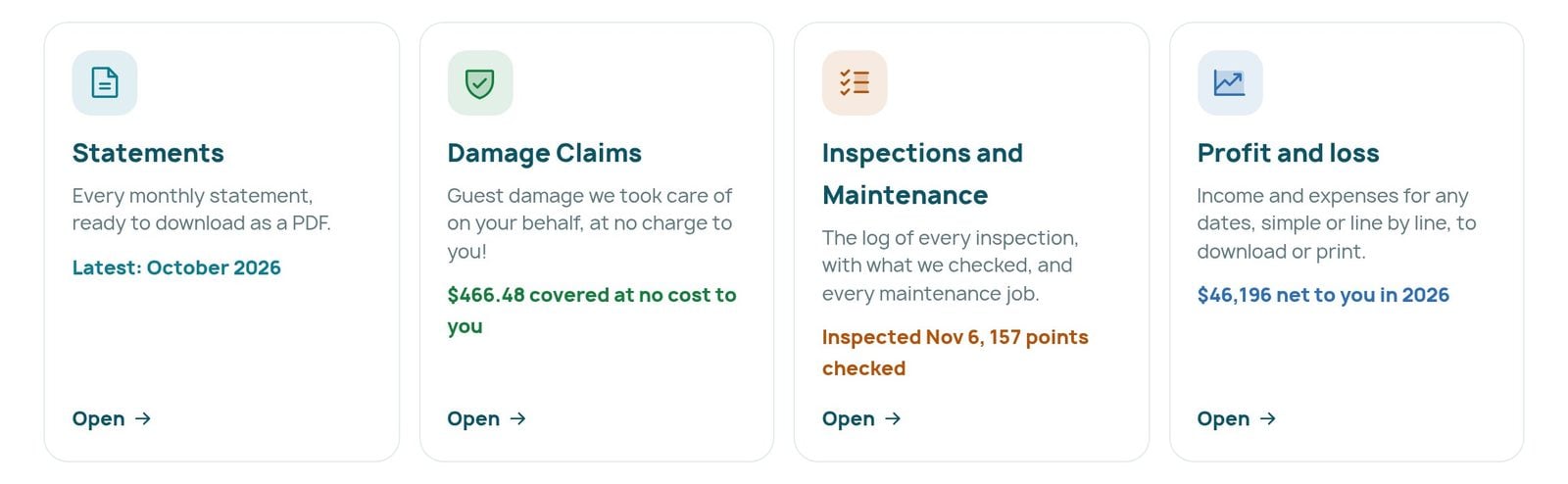
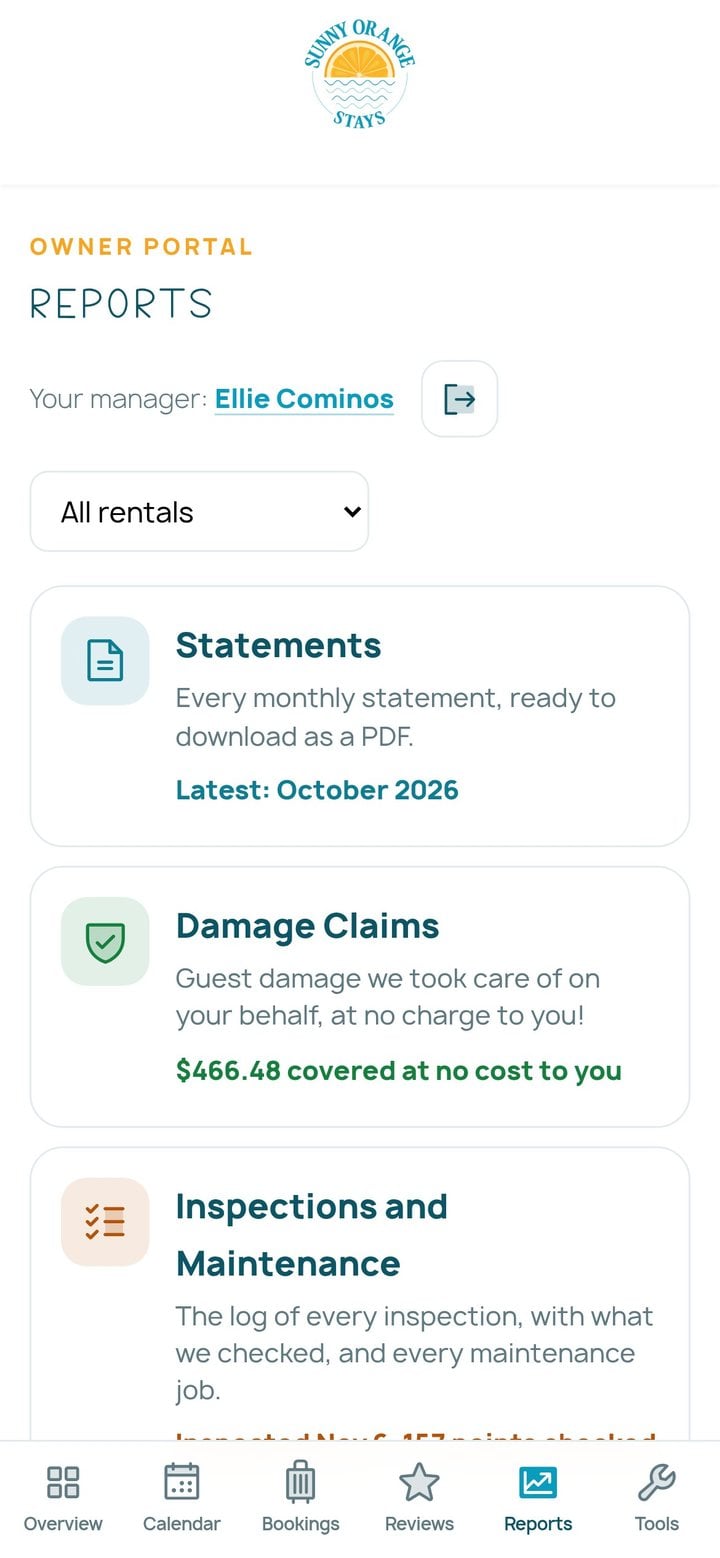
Reports holds four things. Select a tile to open it.
Statements
Every monthly statement for every rental, ready to download as a PDF. The newest is always at the top, and the latest one is also on your Overview.
Profit and loss
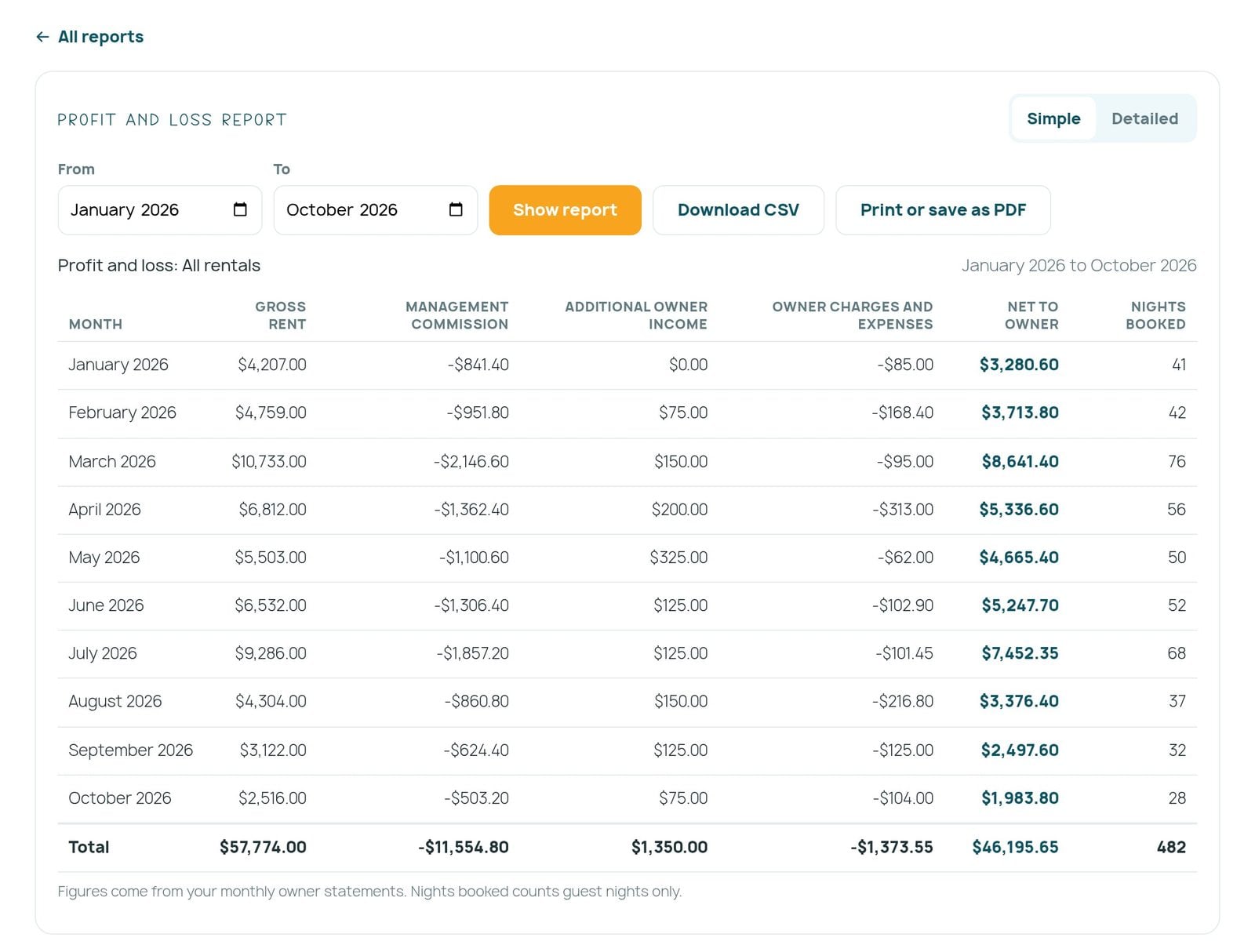
Choose any dates and see your income and expenses for that period. The simple view sums up each month. The detailed view lists every stay, fee, expense and payment, line by line. Sort it, download it as a spreadsheet, or print it. It is the report most owners hand to their accountant.
Damage Claims
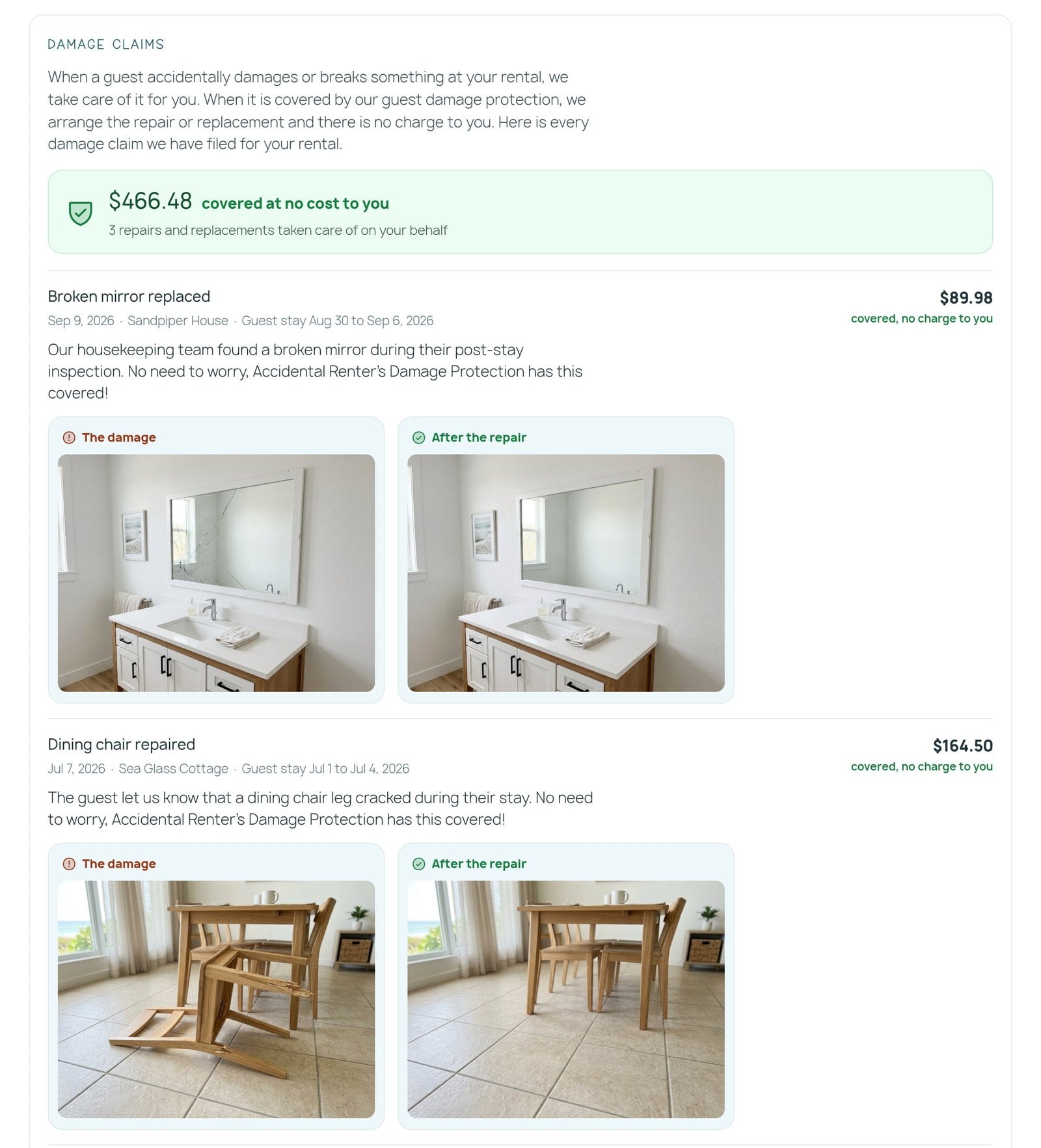
Now and then a guest accidentally breaks something. When that happens we take care of it for you, and this report shows the whole story: what happened, photos of the damage and of the repair, and the cost, which Accidental Renter’s Damage Protection covered at no charge to you. You can read more about how that protection works on our Accidental Renter’s Damage Protection page.
Inspections and Maintenance
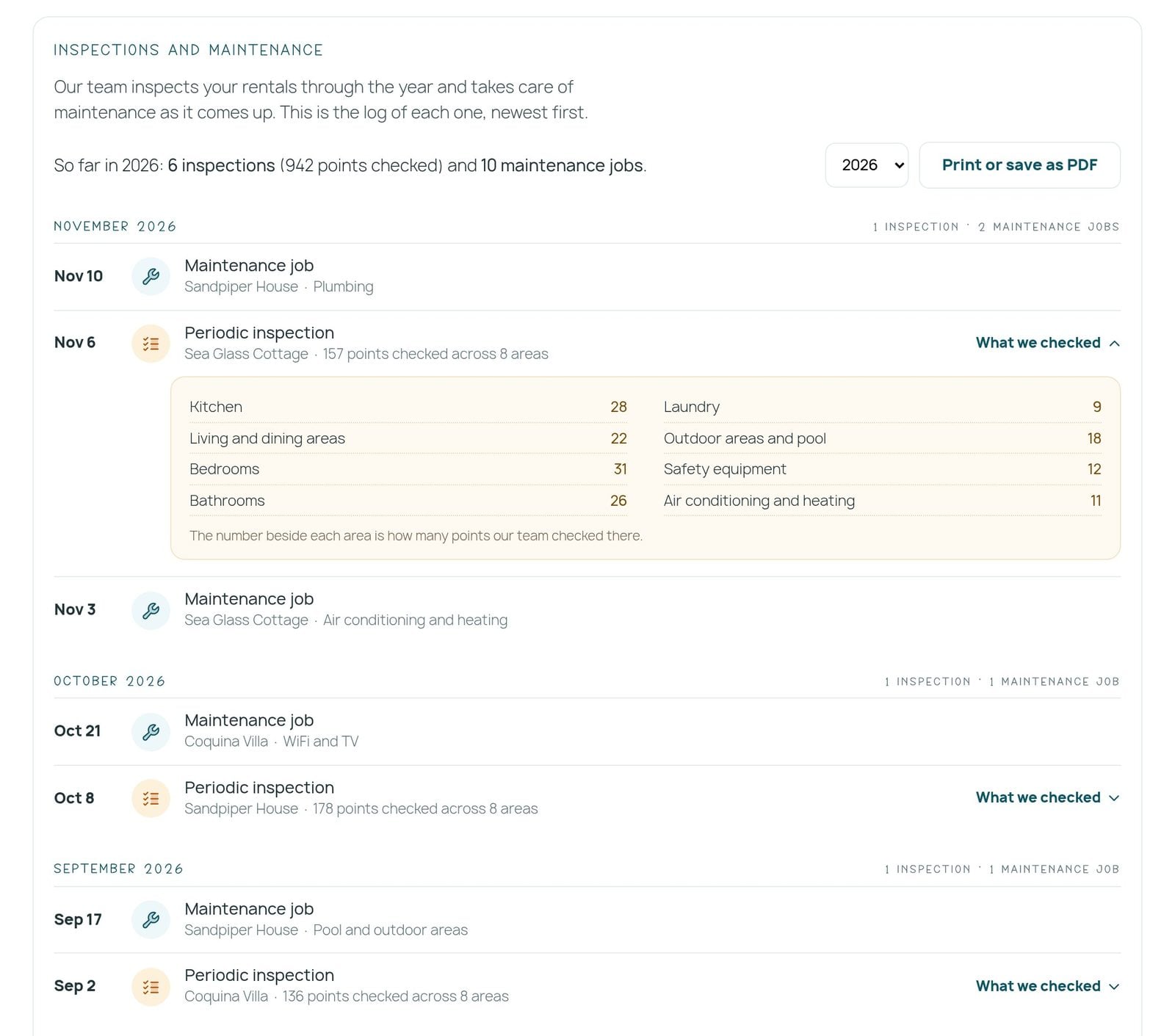
This is the record of the care your rental receives. Each inspection lists the areas our team checked, and every maintenance job we have handled sits alongside, newest first. Print it or save it as a PDF whenever you like.
Tools: Share Your Rental and See What It Brings In
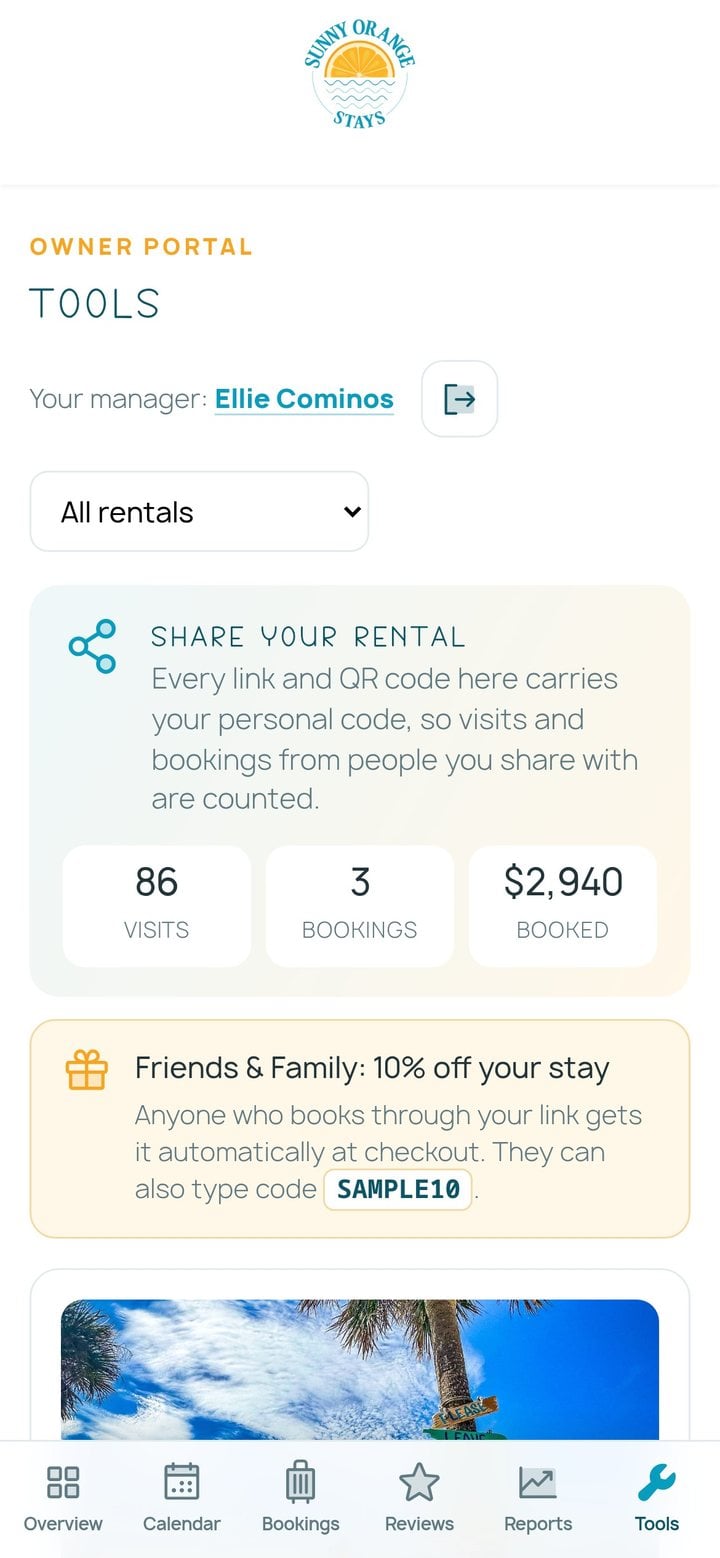
Tools helps you share your rental with the people you know. Every link and QR code carries your personal code, so the visits and bookings you bring in are counted right here.
- Share a link straight to your rental’s page on our site.
- Save ready-made images sized for social media.
- Print a sheet with your QR code, or download the code on its own.
- Send open dates with one tap, so friends can see when your rental is free.
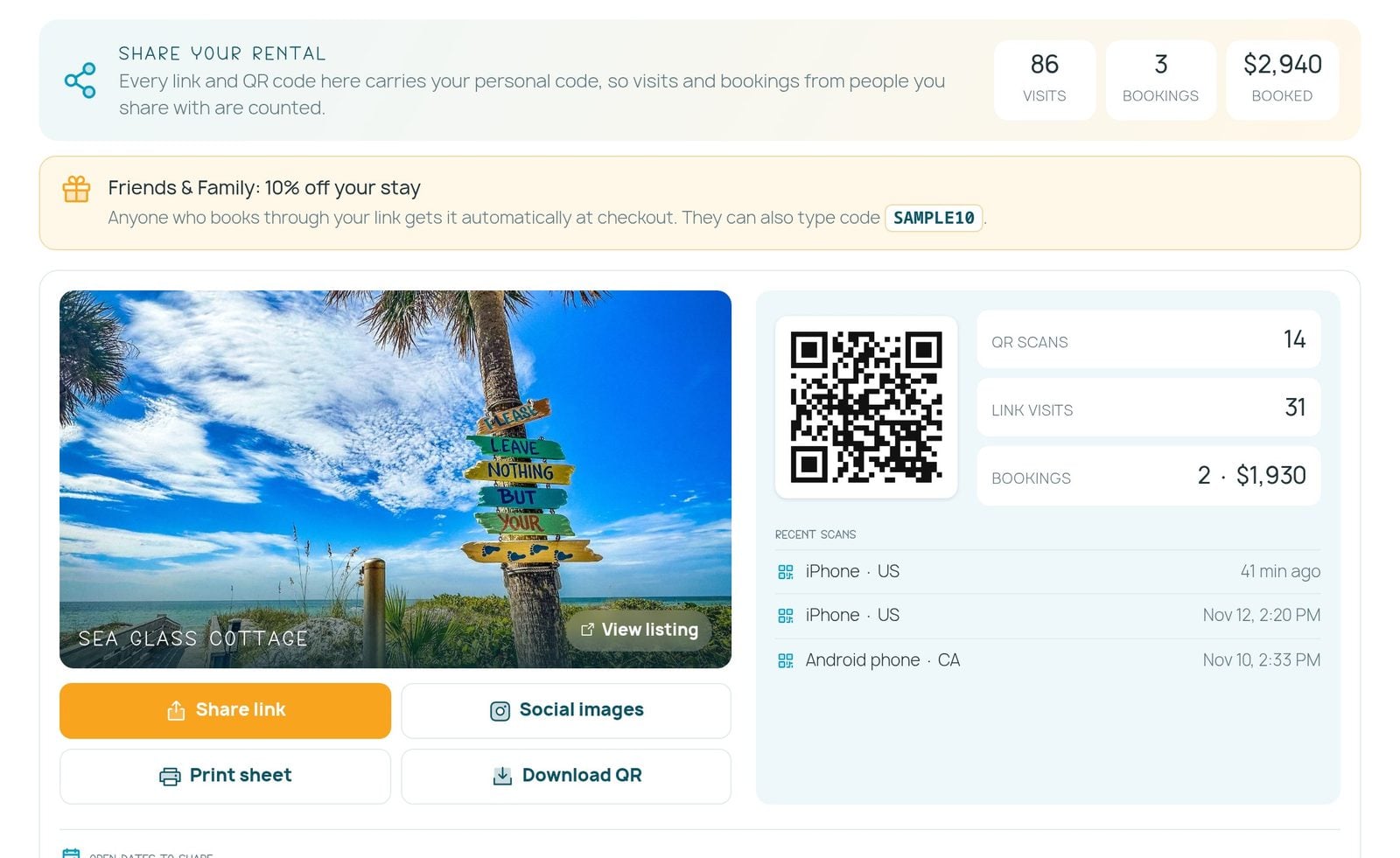
Would you like to offer your friends and family a discount? It is not switched on by default. Ask your manager and we will create a custom code for your link. Once it is set up, anyone who books through your link receives the discount automatically at checkout.
And if you know someone whose property would make a great vacation rental, the same section lets you send us their details and we will take it from there.
On Your Phone, With Your Manager One Tap Away
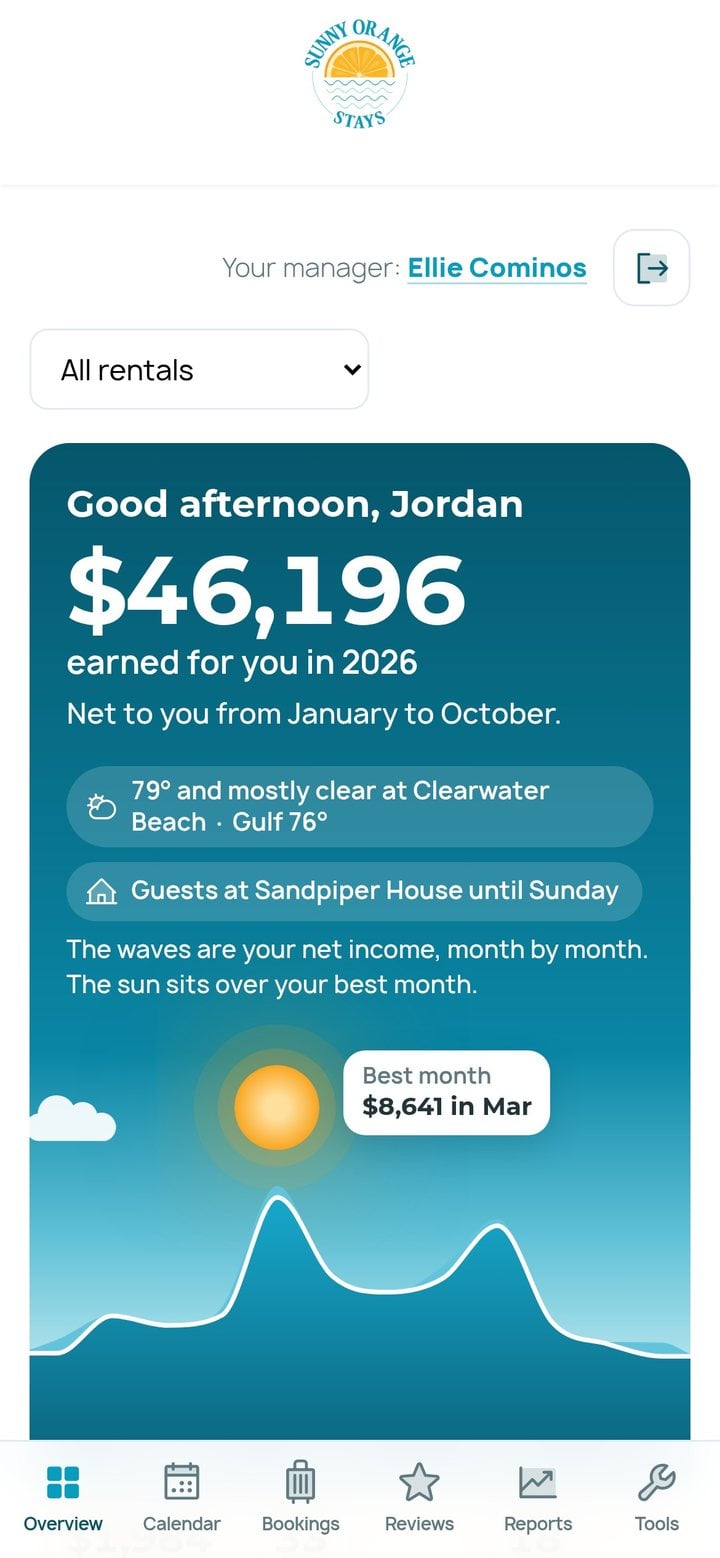
The Owner Portal works just as well on your phone, with the same sections along the bottom of the screen. Your manager’s name is at the top of every page. Select it to send a message straight to them.
Owner Portal Questions, Answered
How do I sign in to the Owner Portal?
Go to sunnyorangestays.com/owner-portal and type the email address we have on file for you. We email you a sign-in link, and selecting it signs you in. There is no password.
What if my sign-in link does not arrive?
Check your spam folder first. If it is not there, we most likely have a different email address on file for you. Let your manager know and we will update it.
I own more than one rental. Can I see them separately?
Yes. The menu at the top of every page lets you see all of your rentals together or one at a time, in every section.
Can I book my own rental through the Owner Portal?
Yes. In Bookings, select Book a stay, choose your rental and dates, and tell us whether the stay is for you or for friends and family. Your dates are held right away. Owner stays are free to book, need two days’ notice and can be up to 60 nights.
Do friends and family get a discount when they book through my link?
Not by default. If you would like to offer one, let your manager know and we will create a custom discount code for your link. Once it is set up, the discount is applied automatically at checkout for anyone who books through your link.
Where do I find my monthly statements?
In Reports, under Statements. Every monthly statement is there to download as a PDF, and your latest one also appears on the Overview.
Does the Owner Portal work on a phone?
Yes. It works on any phone, tablet or computer. On a phone the sections sit along the bottom of the screen.
Is the information in the video from a real owner’s account?
No. The rentals, guests and figures in the video and in the screenshots on this page are sample data made for the tour.
Who do I contact with a question about my rental?
Your manager’s name is at the top of every page of the Owner Portal. Select it to send a message straight to them.
Ready when you are
Your Owner Portal Is Open
Sign in with the email address we have on file for you. Not with us yet? See what Sunny Orange Stays could do for your vacation rental.
Thank you for trusting us with your rental.